

How to turn on two-factor authentication (2FA) on Facebook
Download Authenticator App
-
Before we start, download Facebook Authenticator App.


Locate 2FA Settings
-
Log in to your Facebook account and go to Settings & privacy.
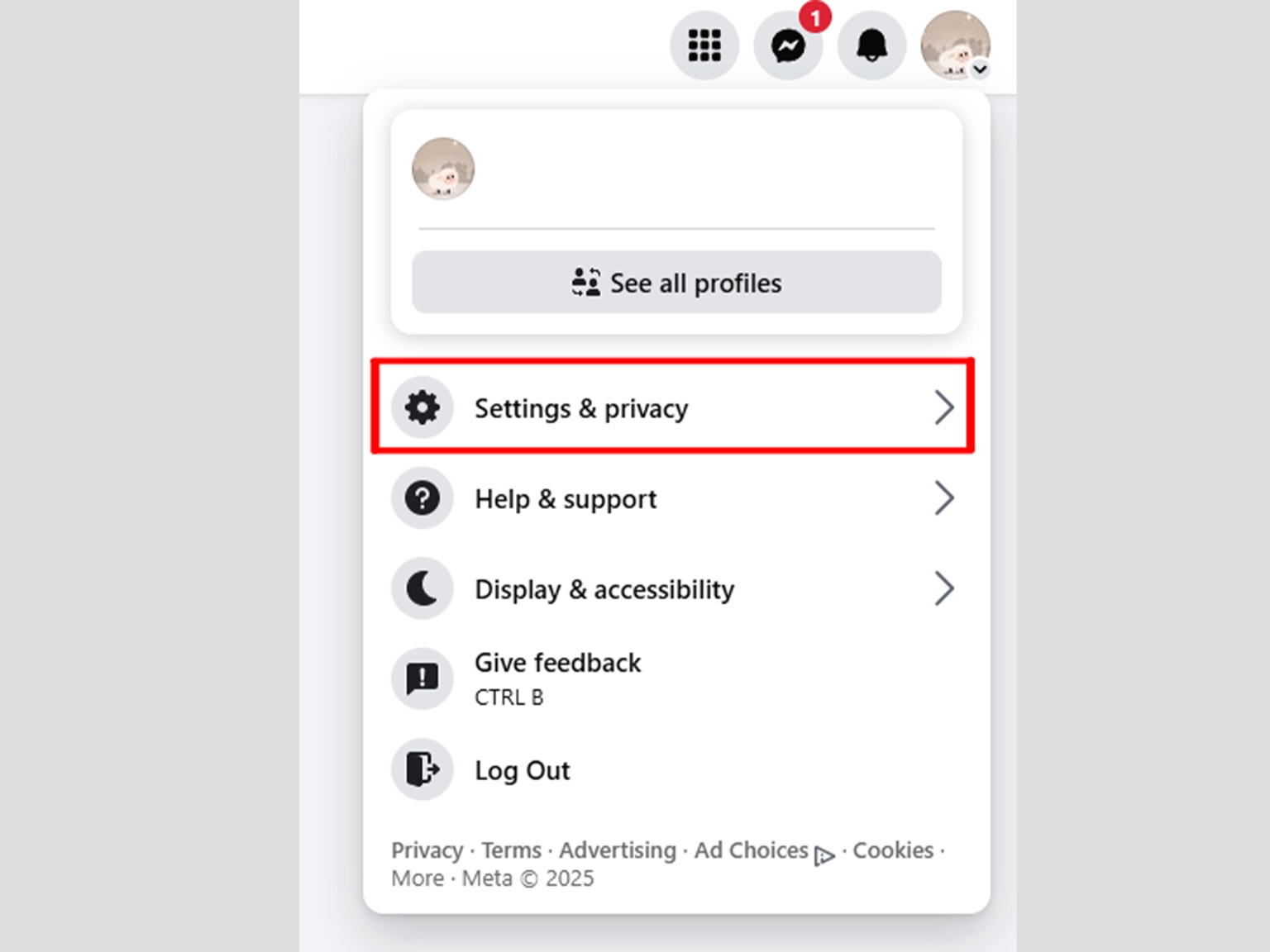
Settings and Privacy
-
Choose Settings tab.

Password and security
-
Select Password and security
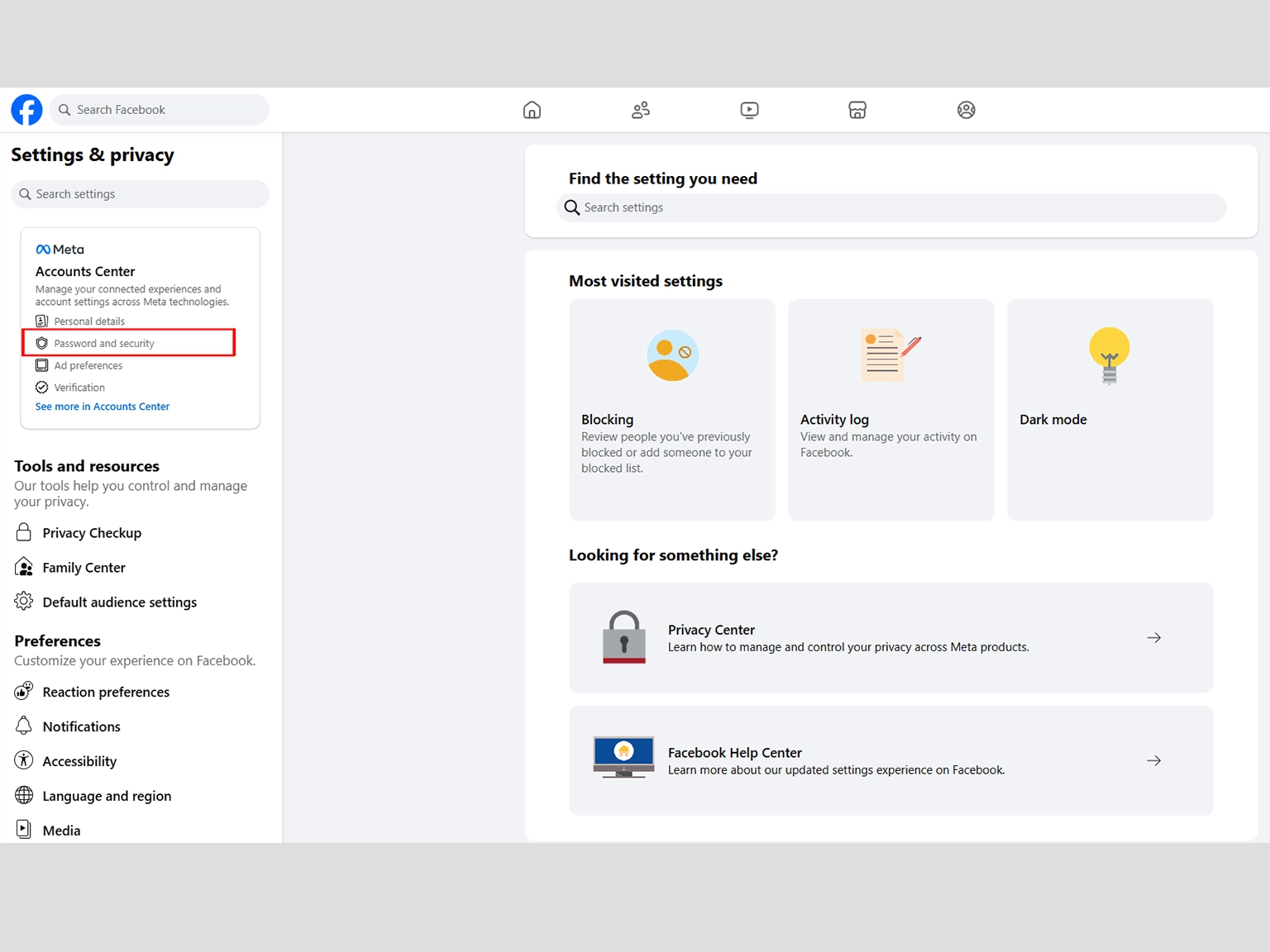
-
Select Password and security
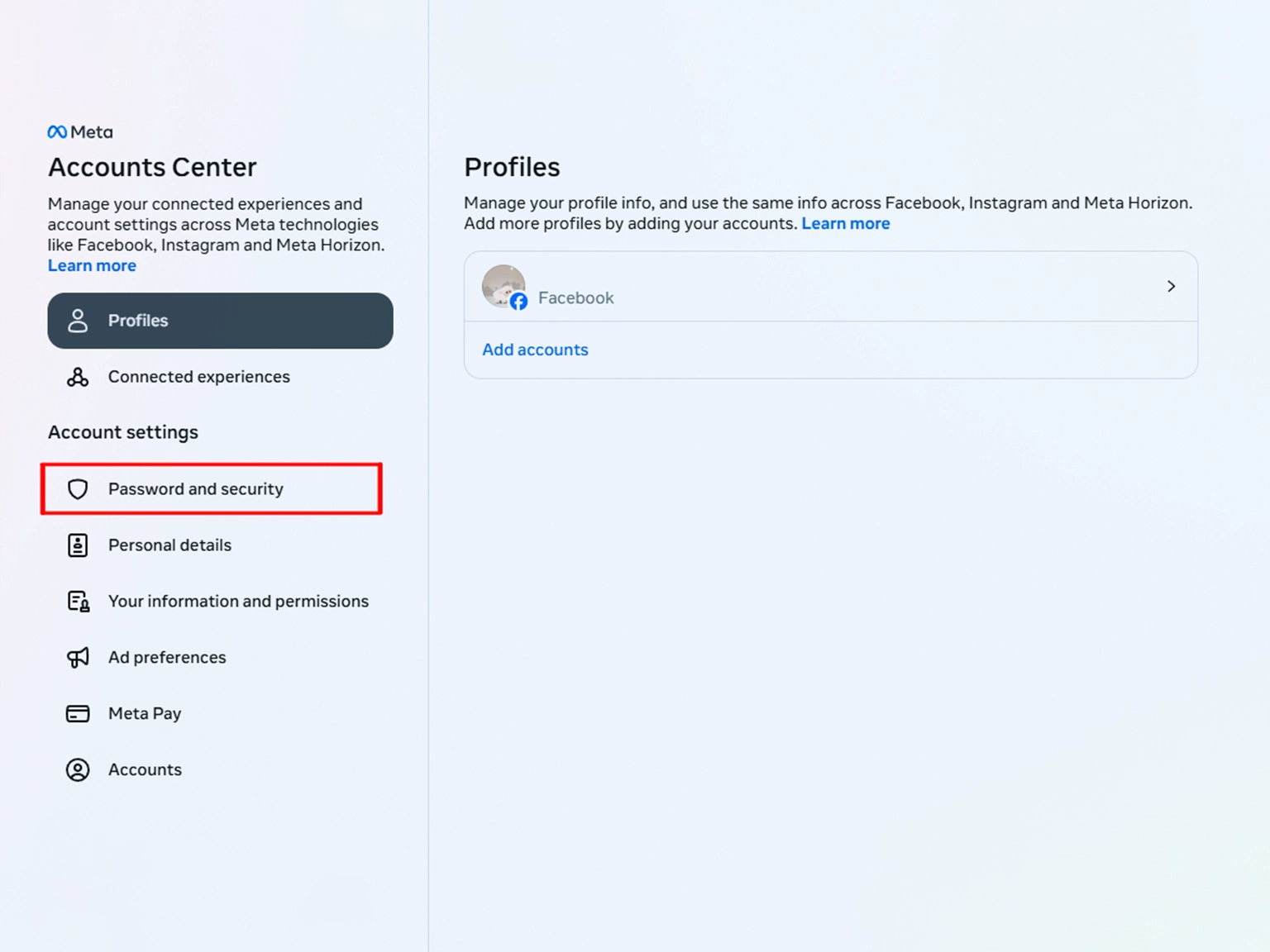
Turn on 2FA Authentication
-
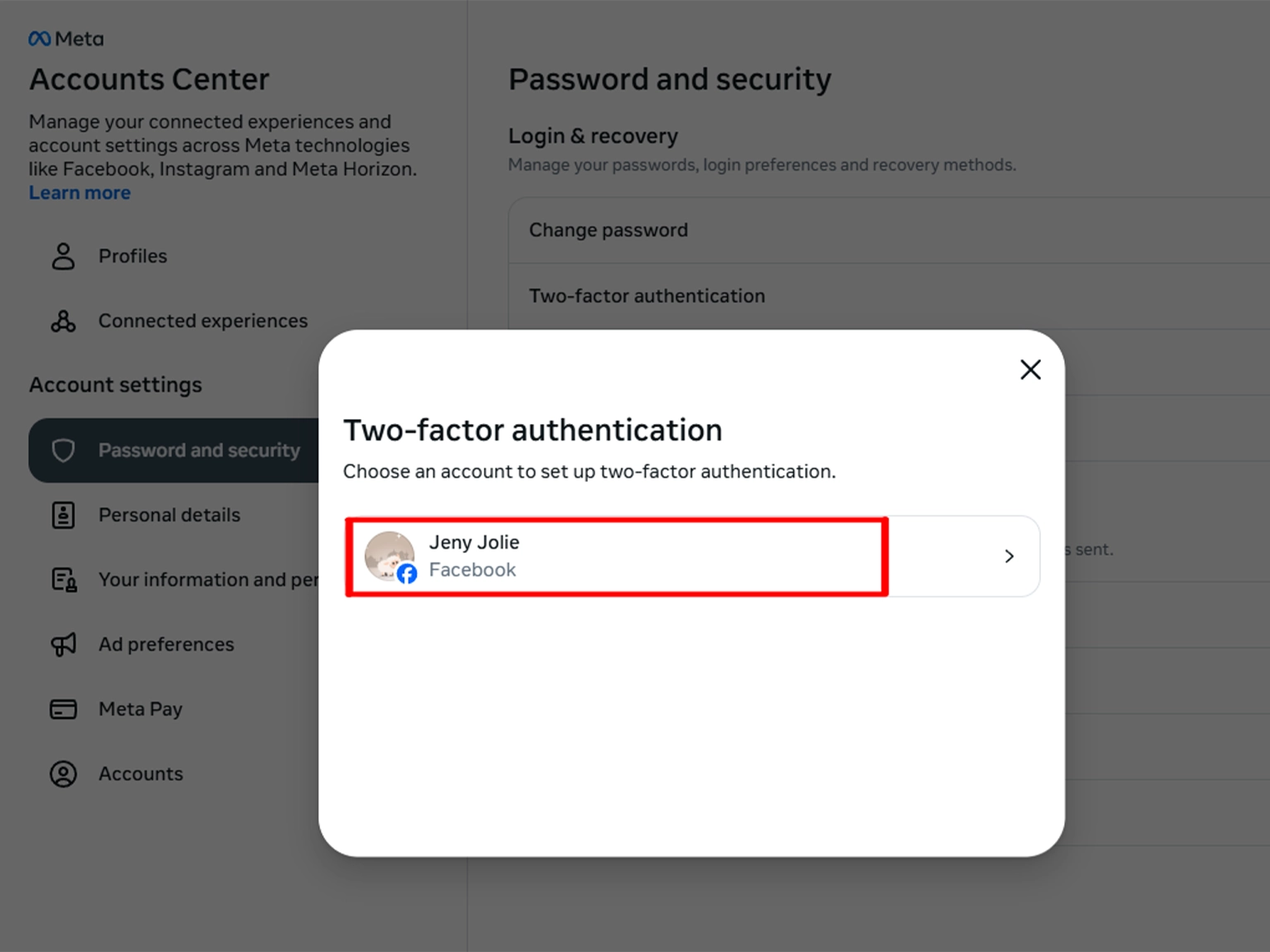
Choose Two-factor authentication.
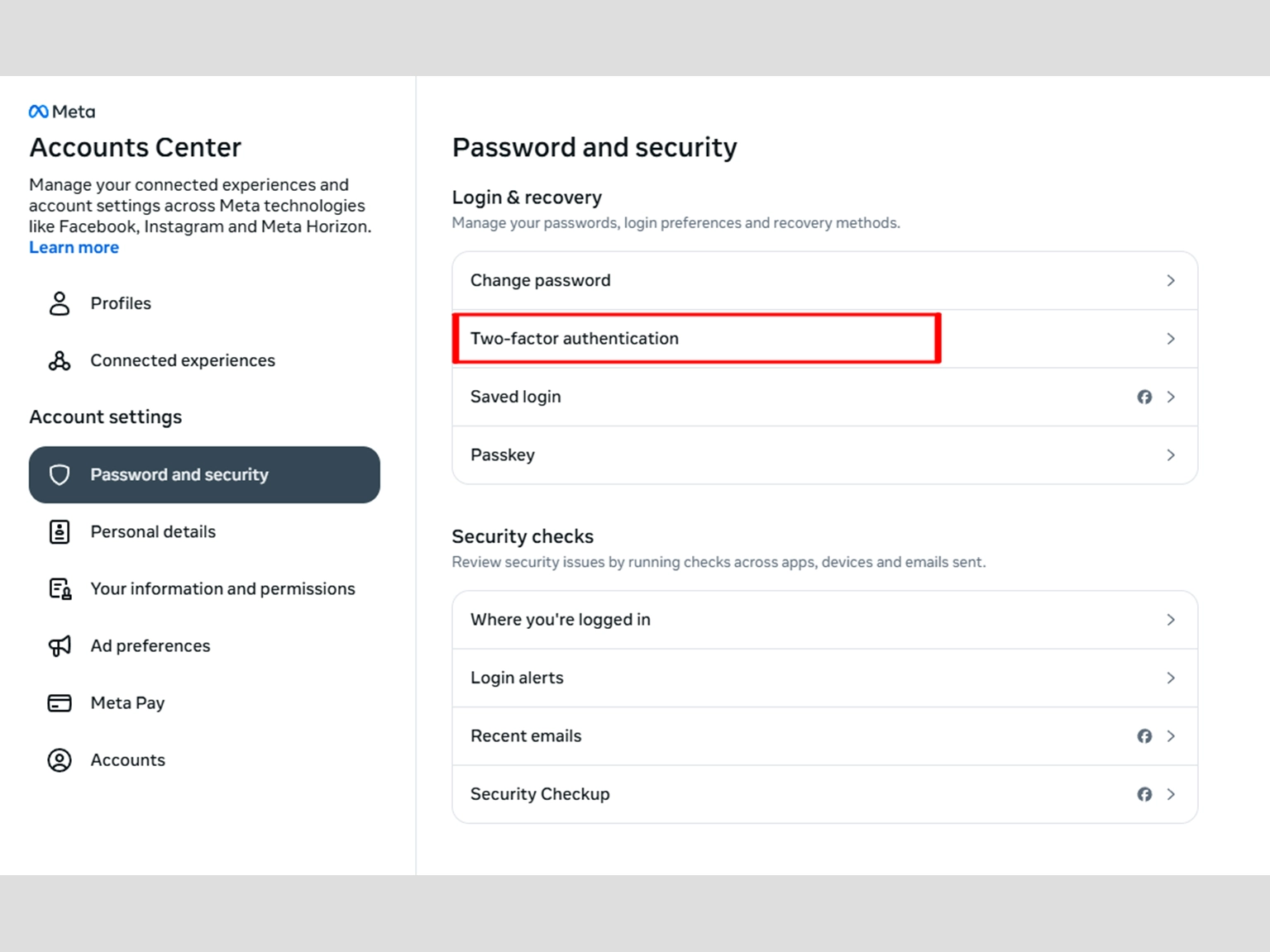
Select Your Account
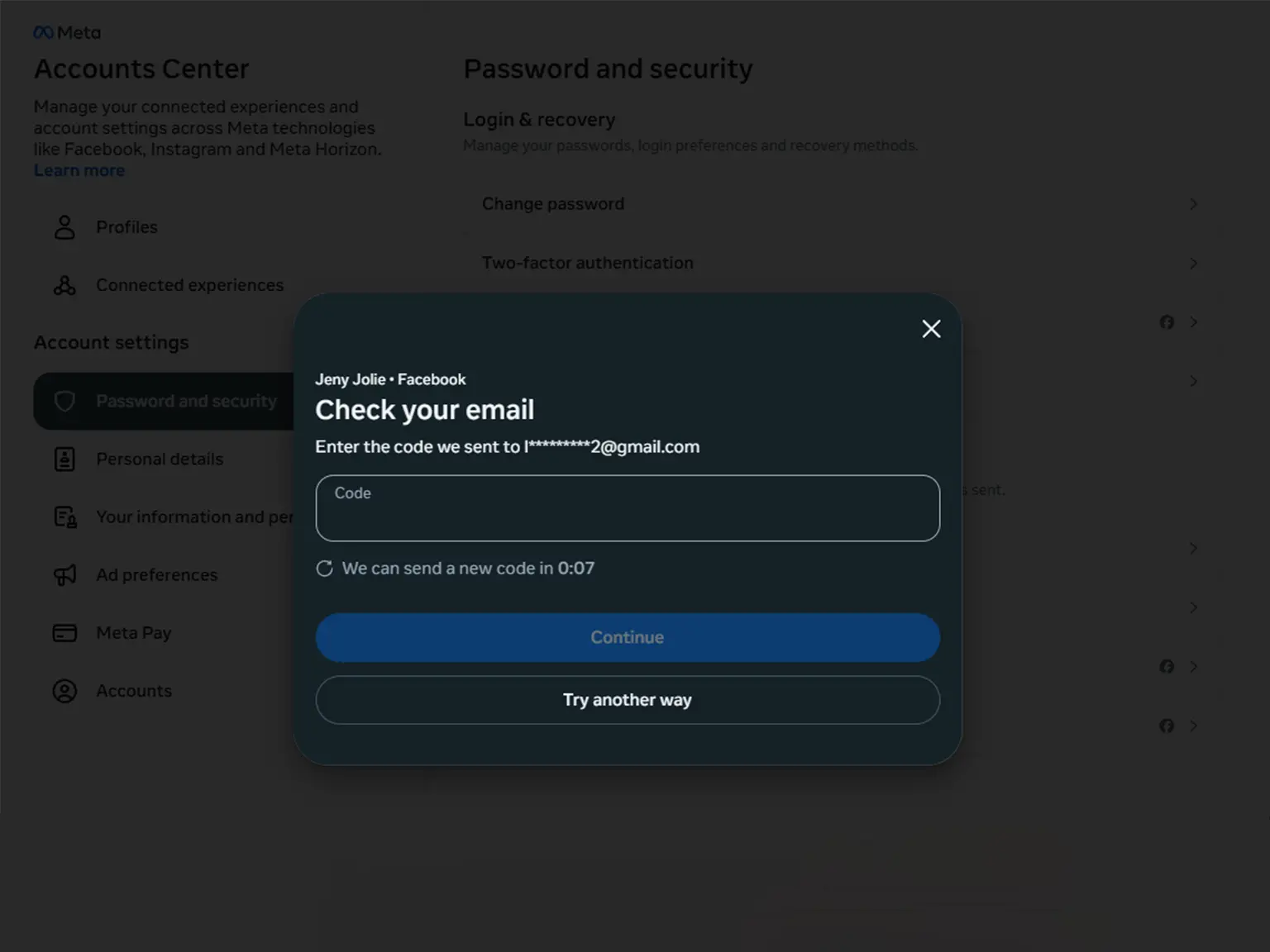
Enter code from Email
-
Check your Email.
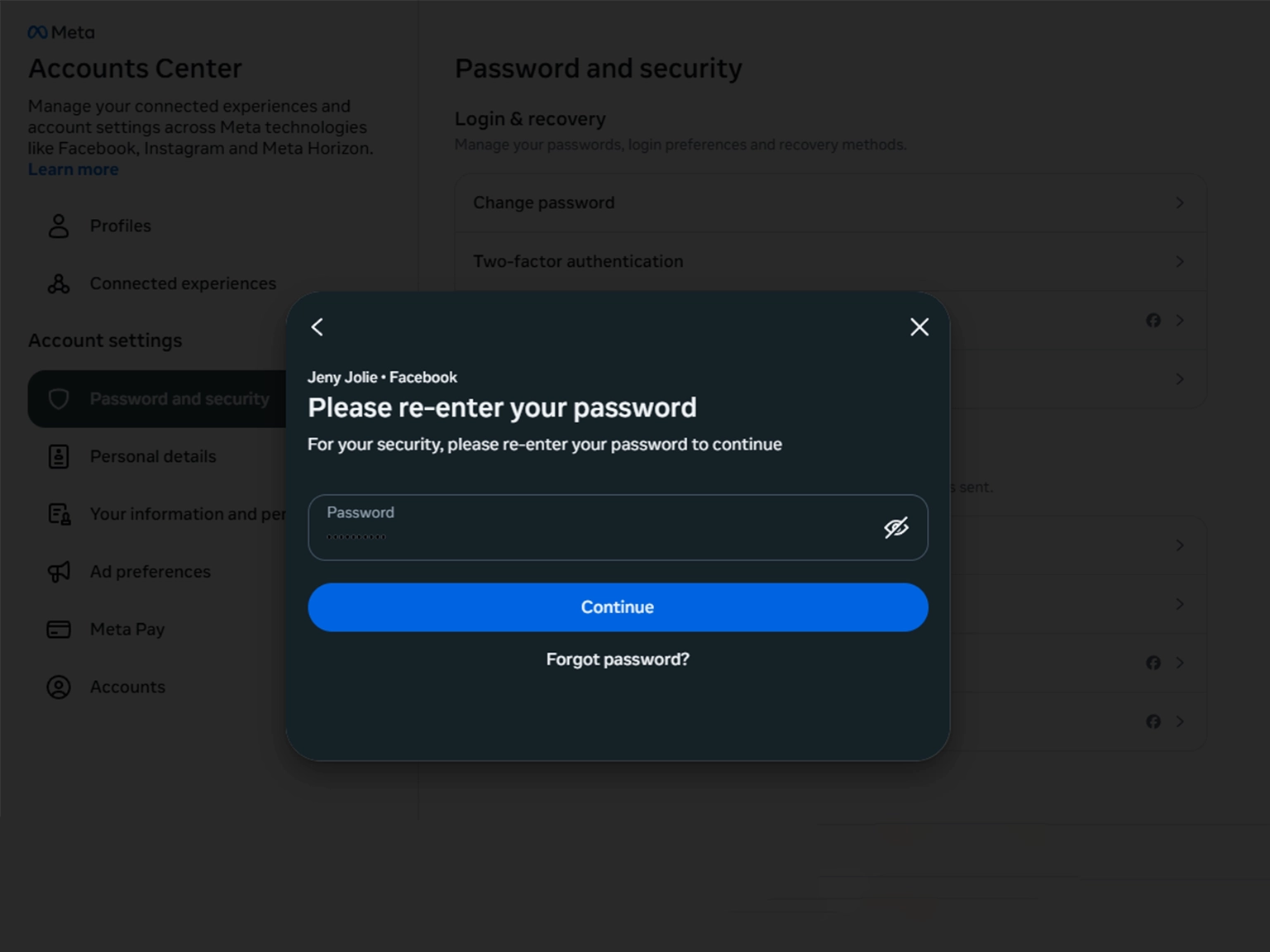
Enter Password Facebook
-
For your security, please re-enter your password to continue
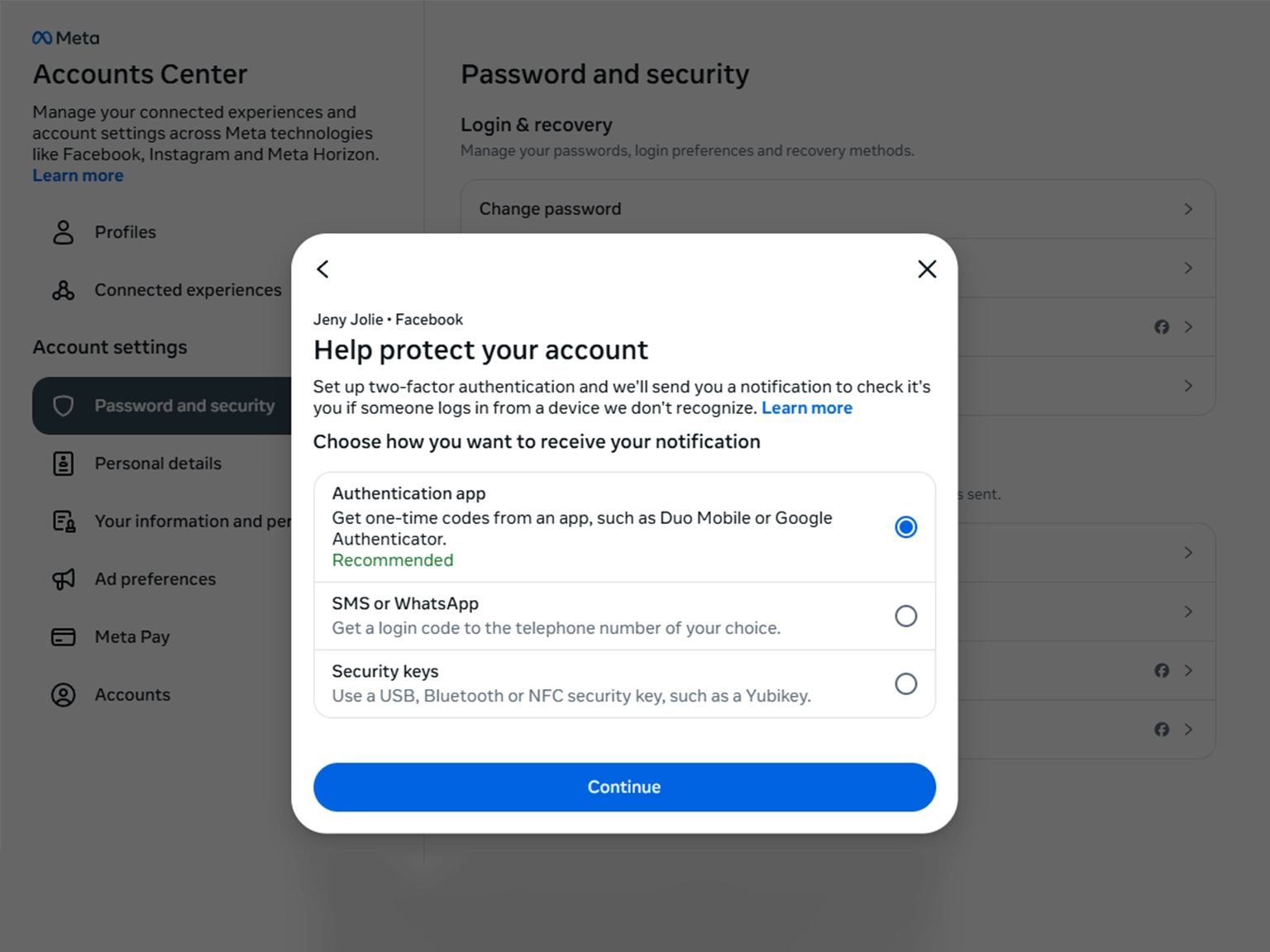
Enable 2FA Authentication App
-
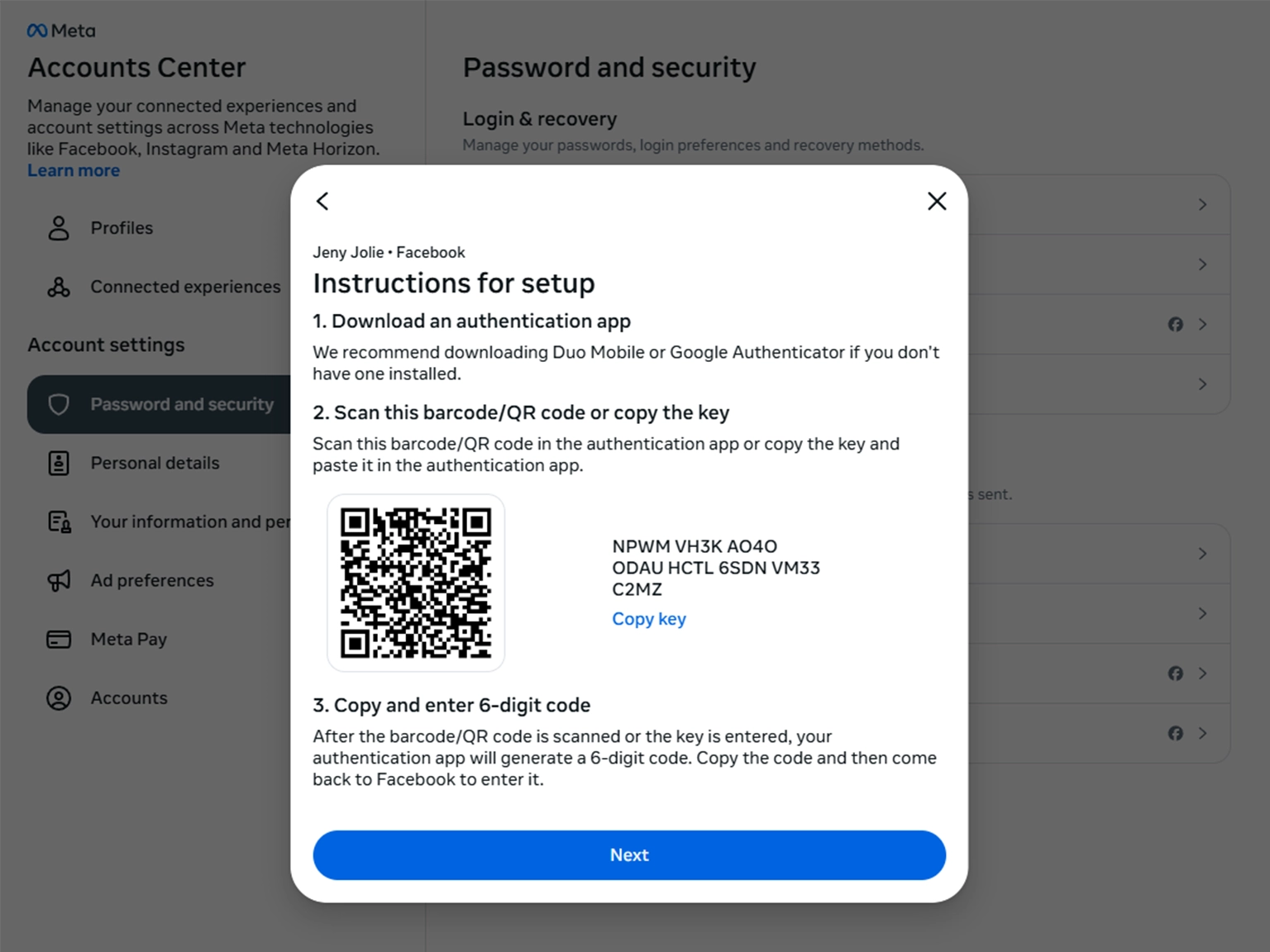
Choose Continue. After clicking continue, the QR code will appear as shown in the picture.
Using Authenticator App
-
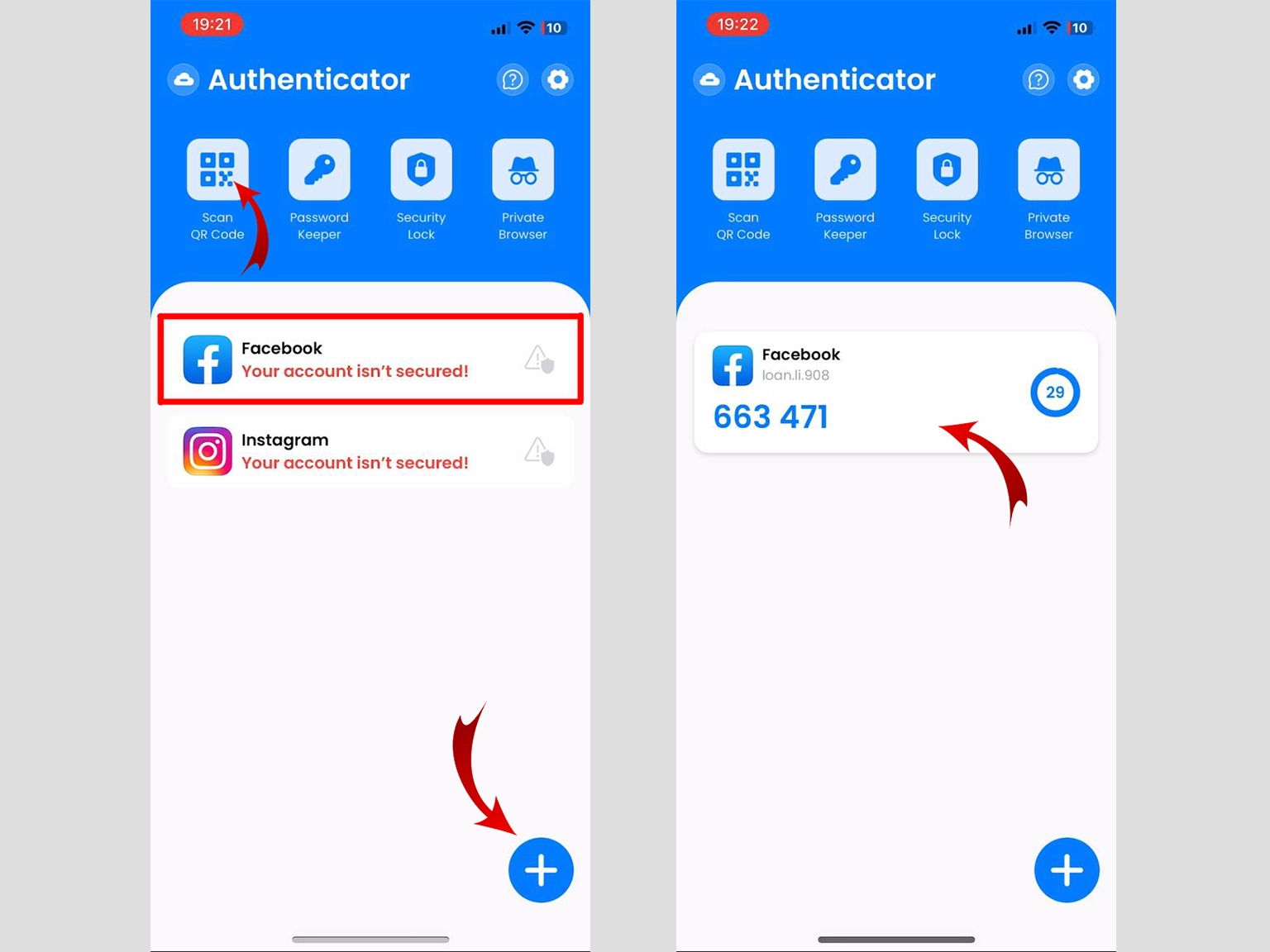
Open Authenticator App : Scan & 2FA. Then, click on "Scan QR" or the plus button
 at the bottom of the screen. You can also click on the Card, as shown in the picture. After clicking, bring your phone up to Scan QR Code in step 9!
When the scan is successful, the 2FA Code will be displayed. Click on Card to copy the code.
Successfully
-
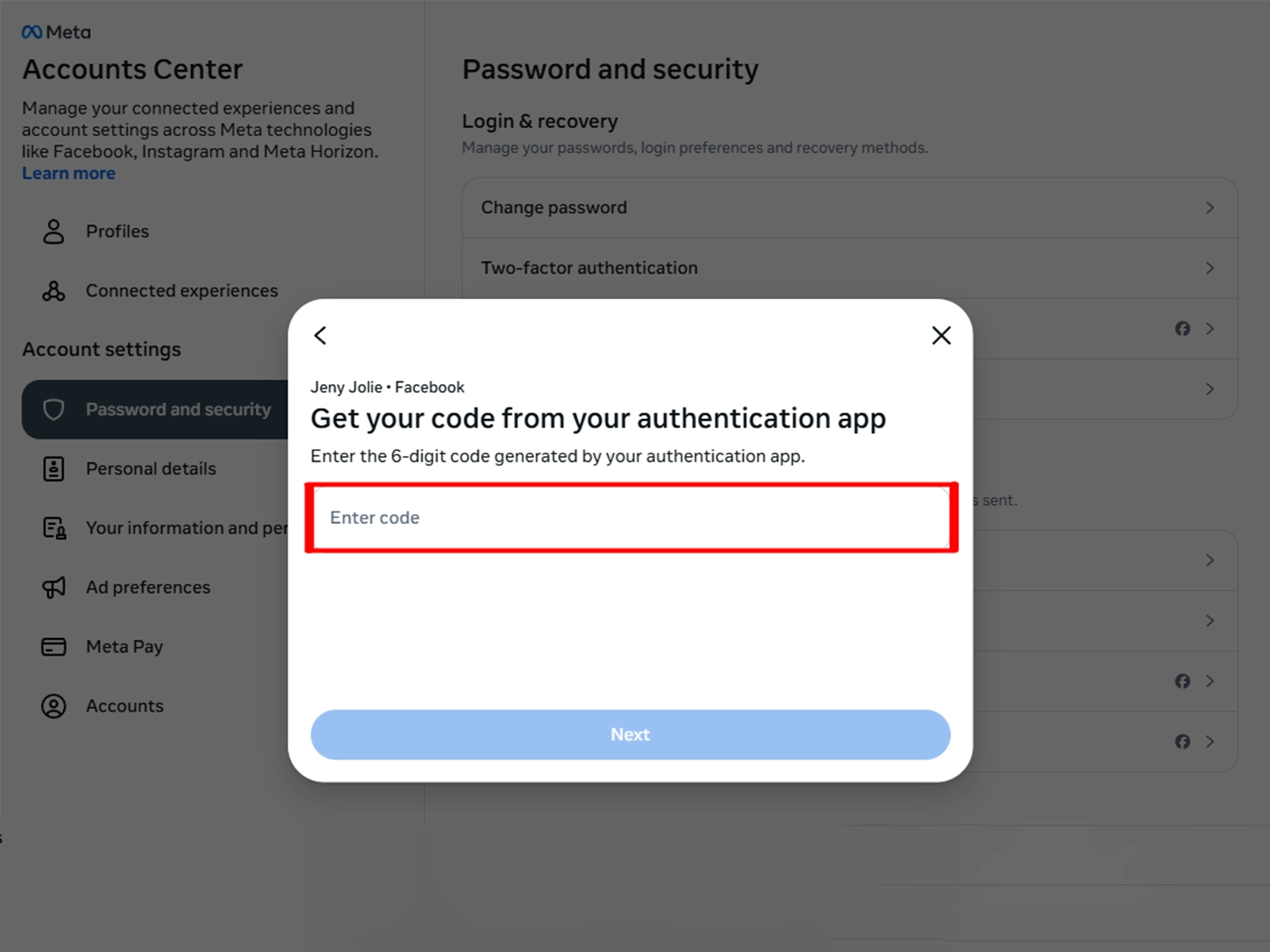
Return to the Facebook app and click Next. Paste the 2FA code, then click Next and Done. You have successfully enabled 2FA Authentication.
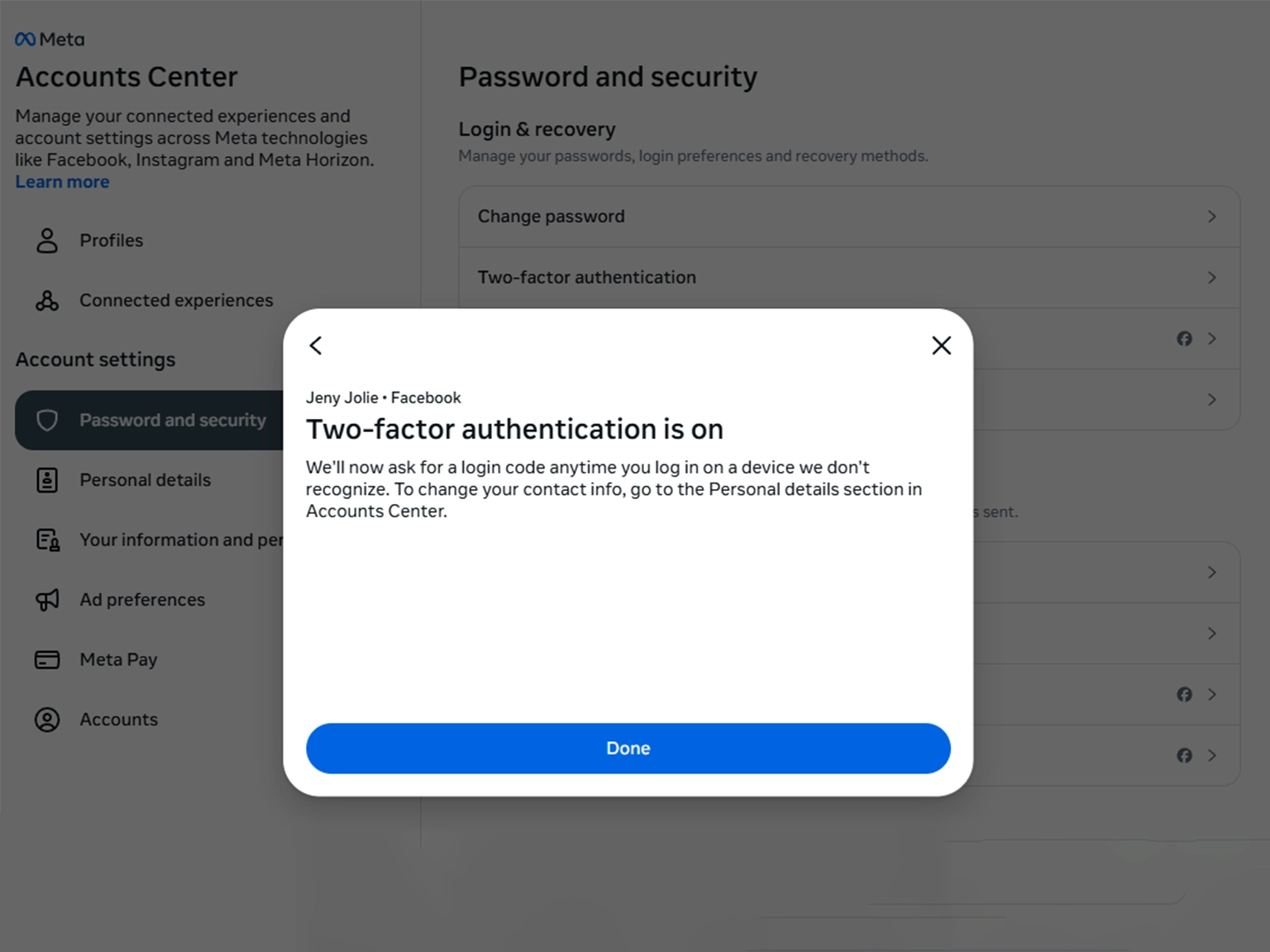
You're all set! You've enabled Two-Factor Authentication (2FA) for your Facebook account. To learn more, visit the Facebook support page. Stay safe!
Was this article helpful?